Every applicant tracking template on the internet is built for a generic "recruitment process" with columns like Requisition ID and Source Channel. None of them are built for what a LinkedIn Easy Apply pile actually looks like: a wave of applicants with profile URLs, screening question answers, and resume PDFs scattered behind clicks.
This one is. It is a free XLSX download, no email gate, and its columns line up with what Reordinal exports, so if you ever outgrow manual entry, the filled version of this exact sheet is one click away.
Download the template
Works in Excel out of the box. For Google Sheets: upload the file to Drive, open it, then File > Save as Google Sheets and everything, dropdowns and highlighting included, carries over.
What is inside
Three sheets:
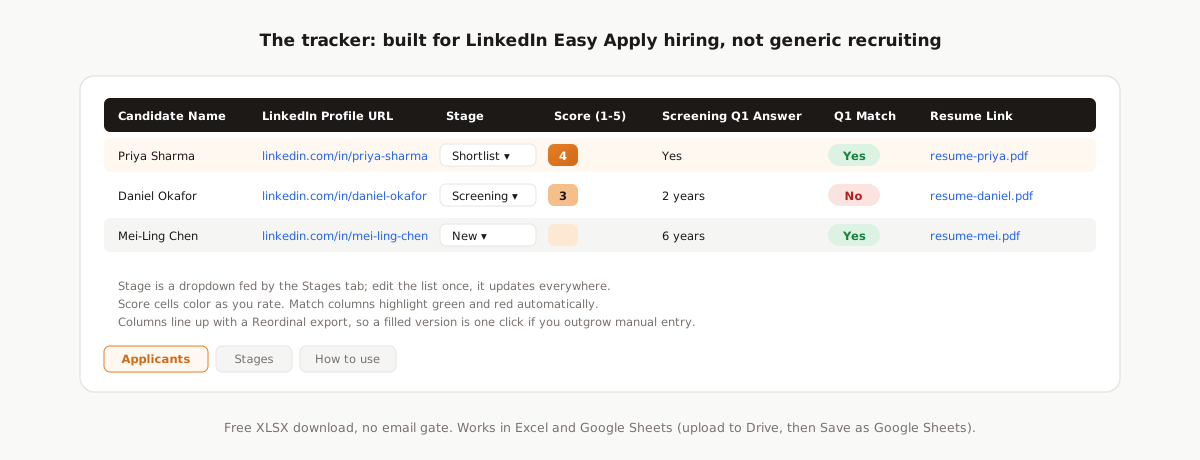
- Applicants: the working sheet, one row per candidate, with a frozen header, three example rows to delete, and the columns below.
- Stages: the list feeding the Stage dropdown (New, Screening, Shortlist, Interview, Offer, Rejected). Edit it once and the dropdown updates everywhere.
- How to use: the same instructions as this page, inside the file, for whoever you send it to.
What each column is for
| Column | Why it is there |
|---|---|
| Candidate Name, LinkedIn Profile URL | Identity, and the one-click way back to the profile |
| Date Applied | Easy Apply arrives in waves; recency changes how you triage |
| Stage | A dropdown, not free text, so it stays filterable |
| Score (1-5) | Your manual read; cells color automatically as you rate |
| Screening Q1 to Q3, Answer + Match pairs | The answers your post collected, next to a Yes/No match that highlights green and red |
| Resume Link | A link or file path per row, so resumes stop living in a folder divorced from their rows |
| Notes, Next Action, Owner | The difference between a tracker and a list of names |
The screening answer columns
Each question gets two columns on purpose: the answer itself, and a match flag. The match column is the one you sort: it turns 200 individual judgments into one filterable signal, and it shows you which of your questions actually filter and which ones every applicant passes. Rename the Q1 to Q3 headers to your real questions; add more pairs if your post asks more.
The resume link column
Paste a Drive link, a file path, whatever you have, but fill it. A tracker whose resumes live in a separate folder decays into a list of names within a week. If your links come from a Reordinal export, each one downloads the candidate's actual uploaded PDF directly.
How to fill it without losing a week
The honest arithmetic, which we walk through in the Excel export guide: manual entry runs two to three minutes per applicant when you copy the screening answers too, which is the part that matters. That is fine at 20 applicants, an afternoon at 50, and the reason the long tail never gets read at 300. If your pile is small or your hiring is occasional, this template plus discipline is genuinely enough. Set a rule that no applicant gets an opinion until their row is filled, and the sheet stays truthful.
The shortcut: let the export fill the template
If the pile is not small: import your applicants once with the free Chrome extension, which captures resumes and screening answers automatically, then export the job to XLSX. What comes back is this sheet, filled: names, profile URLs, applied dates, stages, screening answers with match flags, an AI fit score in place of your manual 1 to 5, and a working resume download link per row. Every job is free to post, no credit card, and tracks up to 100 applications, which covers exactly the pile this template starts struggling with.
Frequently asked questions
Is the template really free?
Yes. Direct XLSX download, no email gate, no signup. Use it, share it, modify it.
Does it work in Google Sheets?
Yes. Upload the XLSX to Google Drive, open it, and choose File > Save as Google Sheets. The stage dropdown, score coloring, and match highlighting all carry over.
How do I add my own screening questions?
Rename the Screening Q1 to Q3 headers to your actual questions. Each question is a pair of columns, the answer and a Yes/No match; copy a pair to add a fourth question.
Why do the columns match Reordinal's export?
So the manual and automatic paths are the same sheet. Start manual with this template; if the pile outgrows you, import your applicants with the free Chrome extension and export the filled version, with AI fit scores and working resume links, in one click.