
You added screening questions to your LinkedIn job because resumes do not answer "can you work hybrid from Bengaluru" or "what is your notice period." Candidates answered them. And now those answers, the most deliberate, structured data your job post collected, are trapped one profile at a time behind LinkedIn's applicant view, invisible to every export LinkedIn offers.
Here is how to get every answer out, into one spreadsheet, with the match flags intact.
What LinkedIn shows you, and what it will not give you
Inside the applicant view, LinkedIn shows each candidate's screening answers on their card, and the "meets requirements" filter uses them in aggregate. That is where it ends. The export options across every LinkedIn tier, Recruiter included, do not carry screening answers at all. You cannot see all answers to one question side by side, cannot sort by them, and cannot hand them to a hiring manager without screenshots.
Which is backwards, because the whole value of screening answers is comparative. One candidate's "2 years of Python" means little; the distribution of that answer across 300 applicants is a hiring signal.
What a screening answer actually contains
Each answer is four fields, not one:
| Field | Example |
|---|---|
| The question | "How many years of Python experience do you have?" |
| Your ideal answer | "3 or more" |
| The candidate's answer | "5" |
| Matched | Yes |
The match flag is the column you will sort on. It is LinkedIn's own evaluation of the candidate's answer against your ideal, and once it is in a spreadsheet it turns 300 individual judgments into one sortable column. We wrote a full playbook on designing questions worth asking; this post is about getting the answers out afterward.
Getting answers out with match flags intact
Two steps, both covered in depth elsewhere, so in brief:
Import once. The Reordinal Chrome extension captures the complete screening Q&A for every applicant it imports: question, ideal answer, candidate answer, match. The step-by-step walkthrough is here.
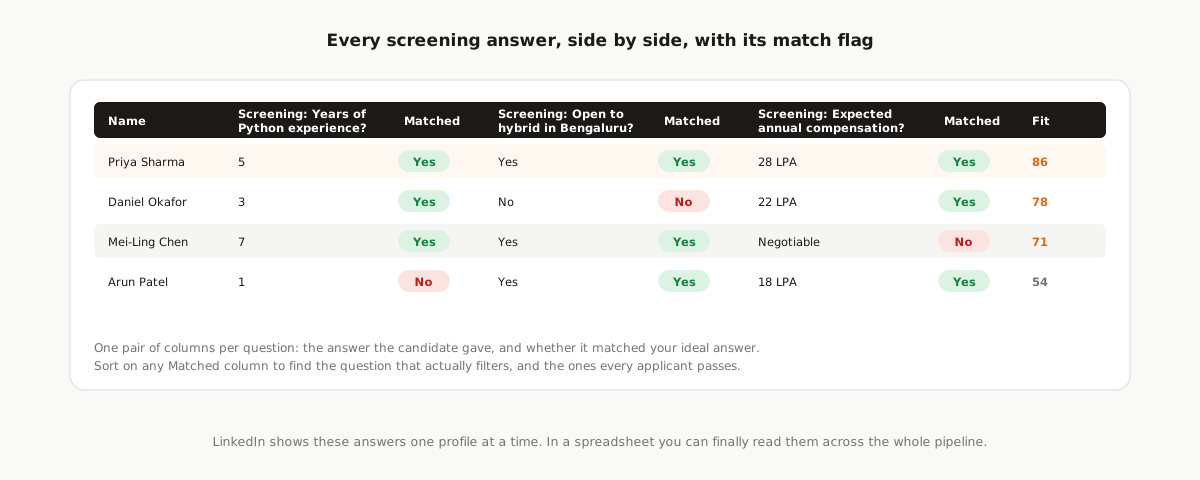
Export the job. Click Export on the candidate list and pick CSV or Excel. Every screening question becomes a pair of columns: the candidate's answer, and a Yes/No matched flag. Ten questions, twenty columns, one row per candidate, next to their fit score and resume link.
Three things to do with the spreadsheet
Nobody else exports this data, so nobody else writes about what it is good for. Three uses that pay for the ten minutes of setup:
Audit which questions actually discriminate
Sort each Matched column and count. A question every applicant passes is dead weight: it filters nobody and adds friction to your apply flow. A question almost nobody passes might be badly worded, or might be your one real filter. The all-yes questions are the ones to replace before the next posting.
Cross-tab match count against fit score
Add a column summing the matches per row and compare it with the AI fit score. Candidates with high scores and low match counts are worth a manual look: strong resumes tripped by a rigid question. High match, low score is the reverse check. Disagreement between the two columns is exactly where manual review earns its time.
Feed the answers back into the next post
Expected compensation, notice period, and location answers, read across the whole pile, tell you whether your role is priced and scoped to the market that is actually applying. That distribution is invisible one profile at a time and obvious in a column.
Or skip the spreadsheet: filter on answers directly
Everything above also works without leaving Reordinal: screening answers are list filters you can combine with score sorting, so "matched all three questions, sorted by fit" is a saved view rather than a spreadsheet exercise. The export is there for the moments a file is the right shape: sharing outside the team, archiving a search, or feeding another tool. Both are two clicks, so use whichever the moment calls for.
Frequently asked questions
Can you export LinkedIn screening question answers?
Not from LinkedIn: no plan or tier includes screening answers in any export. The Reordinal Chrome extension captures the full Q&A per applicant at import, and the job then exports to CSV or Excel with one answer column and one matched column per question.
Does LinkedIn Recruiter export screening answers?
No. Recruiter's export is a bare list with names, statuses, and dates. Resume PDFs and screening answers are excluded at every price point, which is the core finding of our tier-by-tier breakdown.
What does a screening answer export include?
Per question, per candidate: the candidate's answer and a Yes/No matched flag against your ideal answer, as adjacent columns. These sit alongside contact fields, stage, AI fit score, and a resume download link in the same row.
Can I filter applicants by screening answers before exporting?
Yes. Screening answers are list filters in Reordinal, and the export honors active filters. Filter to candidates who matched a specific question, then export, and the file contains exactly those rows.