
You posted a job on LinkedIn. Easy Apply did its job: 200 applicants in the first week, maybe 600 by the second. Now every resume is trapped behind its own click, your shortlist lives in a spreadsheet, and half your screening notes are in a Slack thread nobody can find.
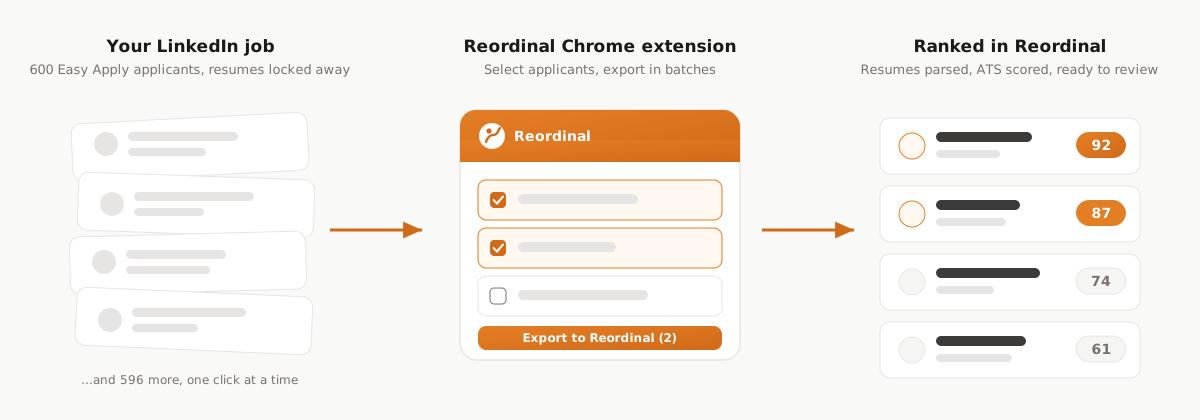
This guide walks through getting those applicants out of LinkedIn and into a real pipeline: every selected applicant, with their actual resume PDF and their screening question answers, exported in bulk into Reordinal, where resumes are parsed and scored automatically. End to end it takes about ten minutes to set up, and a couple of seconds per applicant after that.
Why you can't bulk-export resumes from LinkedIn
LinkedIn is very good at collecting applicants and much less interested in letting you take them elsewhere. The applicant view gives you a list, and it lets you open each candidate and view their resume one at a time. What it does not give you is a bulk export that carries the resume PDFs with it. Whatever export options exist produce a bare list at best: names and headlines, no resumes, no screening answers. And no, a paid seat does not fix this: no LinkedIn plan, Recruiter included, offers a real applicant export.
So teams cope. They review inside LinkedIn's cramped panel, or they download
resumes one by one into a folder named resumes-final-v2, or they give up on
reviewing the long tail entirely. With 600 applicants, "cope" usually means
"the last 400 never get looked at."
The fix is a Chrome extension that reads the applicant list you are already looking at, and exports the applicants you select, resumes included, into your own workspace. Here is the whole process.
What you'll need
- A LinkedIn job you control. The extension works on the applicants page of your own job posts. It reads pages you are already authorized to view; it never asks for your LinkedIn password.
- Google Chrome, or any Chromium-based browser (Brave, Edge, Arc, Opera) with the Reordinal extension installed from the Chrome Web Store.
- A Reordinal workspace. Sign up here; it takes a minute, and every job is free to post, no credit card, tracking up to 100 applications. Adding AI ranking and the team features to a job is priced per job, one time. A free job is enough to run this whole guide.
Step 1: Create the job in Reordinal
Sign in at reordinal.com and create a workspace, a team, and a job. The one thing worth doing properly here: paste the same job description you used on LinkedIn into the Reordinal job.
This matters because Reordinal scores every imported resume against the job's criteria, the must-haves and nice-to-haves in the description. A thin description gives you thin scoring. The same posting you already wrote gives the scorer everything it needs.
Step 2: Install the extension and sign in
Install the Reordinal extension from the Chrome Web Store, then sign in to Reordinal in a normal browser tab. That is the entire authentication story: the extension picks up your existing Reordinal session automatically. In the extension popup you will see it flip to "Logged in", with the note "Session syncs automatically after login."
Two things worth being explicit about, because everyone asks:
- The extension never sees, asks for, or stores your LinkedIn credentials. It works on the LinkedIn pages your browser already has open, as you.
- Exported data goes to your Reordinal workspace and nowhere else.
Step 3: Open your applicants page and turn on the overlay
Go to LinkedIn and open your job's applicants list, the page where you normally click through candidates one by one. Click the Reordinal icon in the Chrome toolbar and hit the Dashboard toggle ("Show overlay on this page").
One first-run quirk: if you installed or updated the extension while the LinkedIn tab was already open, the popup will ask you to refresh the page once. Refresh, toggle again, and you are in.
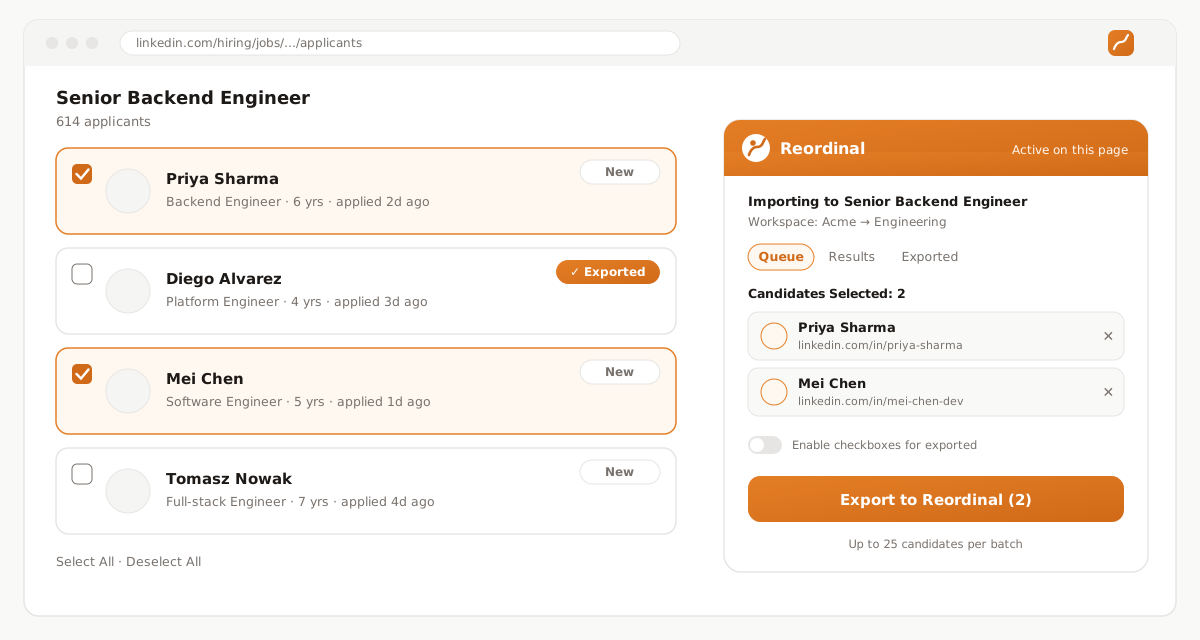
Two things appear. Every applicant card gets a checkbox and a small status pill. And a floating Reordinal panel opens on the page, which is where the rest of the flow happens.
Step 4: Point it at the right job
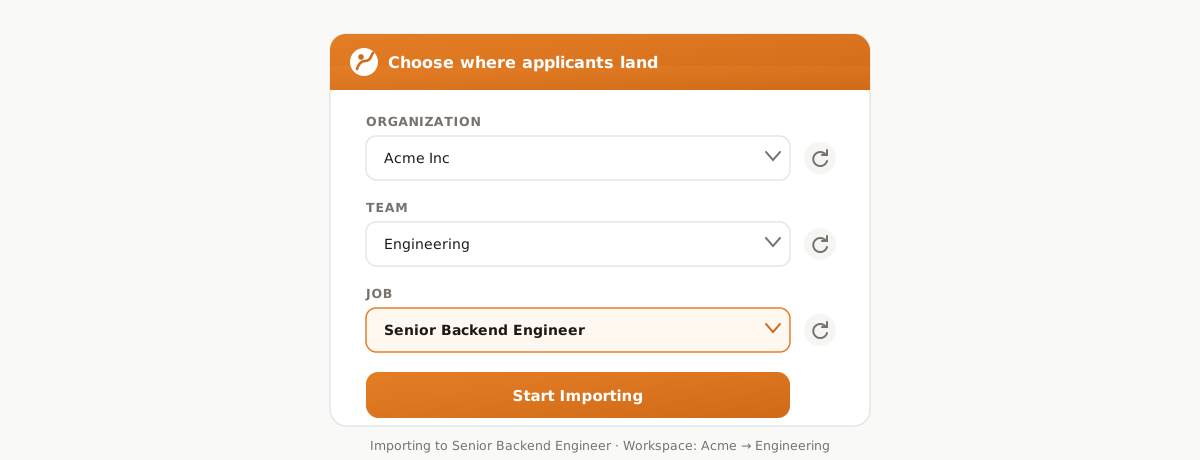
The panel asks where applicants should land: pick your Organization, then the Team, then the Job you created in step 1, and hit Start Importing. The panel confirms exactly what is wired up, for example "Importing to Senior Backend Engineer" and "Workspace: Acme → Engineering", so a mis-import to the wrong job is hard to do by accident.
Step 5: Select the applicants to export
Now the applicant list works like an inbox. Tick individual checkboxes, or use Select All for the visible page. The status pill on each card tells you where that person stands:
- New: not in your Reordinal job yet.
- ✓ Exported: already imported. The extension checks your job's existing applications and marks these automatically, so you cannot double-import someone by accident, even across sessions.
- ✗ Failed: a previous export attempt did not complete. You can retry.
Selected candidates stack up in the panel's queue with a running count ("Candidates Selected: 12"). A batch tops out at 25 candidates; for a 600-applicant job you just run several batches back to back.
If you genuinely want to re-import someone who is already marked exported, flip the "Enable checkboxes for exported" toggle and their checkbox comes back.
Step 6: Export
Hit Export to Reordinal (N). The extension then works through your queue one candidate at a time, and for each one it does the full journey a human reviewer would do by hand:
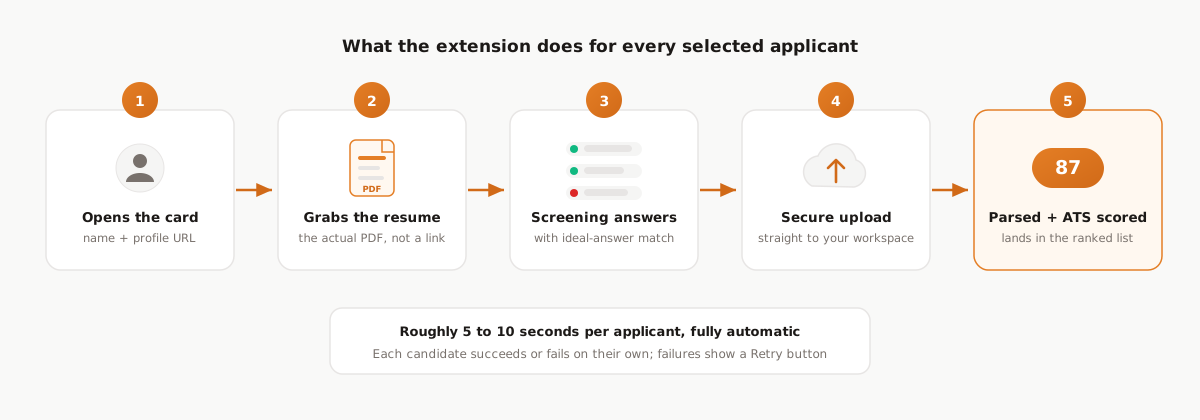
- Opens the applicant's card and captures their name and LinkedIn profile URL.
- Grabs the resume, the actual PDF the candidate uploaded, not a link that dies when they edit their profile. Once imported, resumes are also bulk-downloadable via export links.
- Captures screening question answers, if your LinkedIn job has them: each question, LinkedIn's ideal answer, the candidate's answer, and whether they matched. In Reordinal those answers become filters you can screen with, not just text on a profile, and they export to a spreadsheet with match flags intact.
- Uploads everything securely to your workspace.
- Creates the application in your Reordinal job, where parsing and scoring kick off automatically.
Budget roughly 5 to 10 seconds per applicant; a full batch of 25 runs in a few minutes while you do something else. Each candidate succeeds or fails individually. Successes toast "Exported [name]" and flip the card's pill to "✓ Exported". Failures land in the panel's Results tab with the reason and a Retry button.
The most common failure is also the most honest one: a candidate who never uploaded a resume to LinkedIn. Reordinal's whole pipeline runs on the resume, so that candidate is skipped with a visible error rather than imported as an empty shell. Nothing is dropped silently.
Step 7: Review a ranked list instead of a pile
Open your job in Reordinal. Every imported applicant is there with their resume parsed into skills, experience, and education, their screening answers attached, and an ATS score against your job's criteria. Sort by score, filter by stage or screening results, tag the promising ones, and leave notes your team can actually find later.
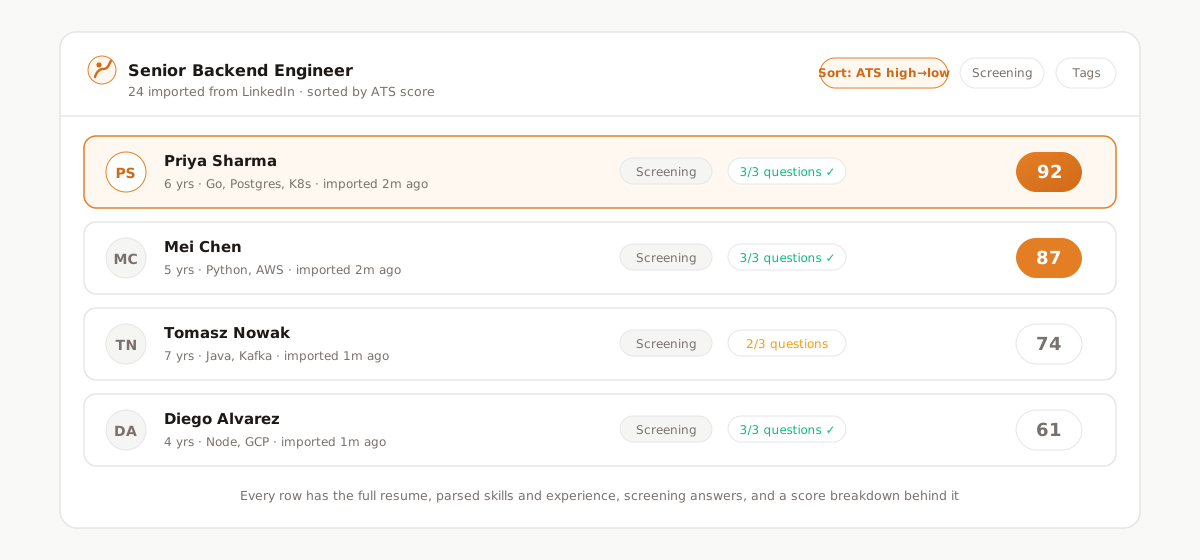
The score is a ranking aid, not a verdict. The point is that the 400 resumes you were never going to open now have a floor: every single one got read, parsed, and scored, and your attention starts at the top instead of at "page 1 of 40".
Step 8: Get a spreadsheet back out whenever you need one
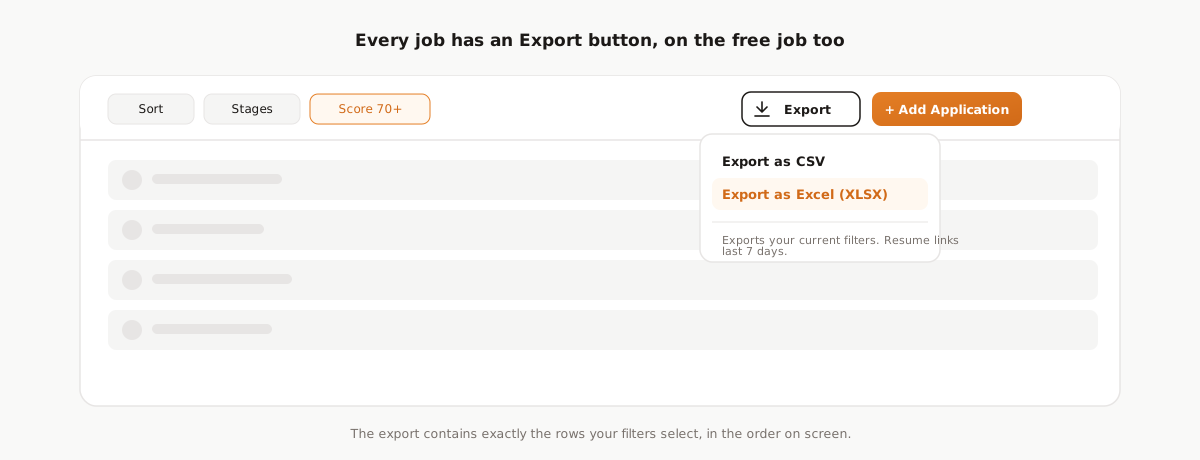
Importing into a pipeline does not lock your data in. Every Reordinal job has an Export button next to Add Application: pick CSV or Excel (XLSX) and you get one row per applicant with contact fields, stage, AI fit score, every screening answer with its match flag, and a working resume download link per row, valid for 7 days. The export honors whatever filters the list has, so exporting just the shortlist is two clicks. It is free on every account, and you can re-export as often as you like. If the destination is a shared team sheet, the Google Sheets guide covers that flow.
What gets exported, exactly
| Data | Exported | Notes |
|---|---|---|
| Name | Yes | From the applicant card |
| LinkedIn profile URL | Yes | Normalized, used for duplicate detection |
| Resume | Yes | The actual PDF; required, candidates without one are skipped |
| Profile photo | Best effort | Skipped silently if unavailable |
| Screening Q&A | Yes, when present | Question, ideal answer, candidate answer, match |
| Your LinkedIn credentials | Never | The extension has no login form at all |
| InMail / messages | No | Out of scope by design |
And everything imported exports back out: any job can be downloaded as a CSV or XLSX spreadsheet, free on all plans, resume links included.
Duplicates, re-runs, and coming back later
The exported-status check runs against your Reordinal job, not against browser memory. Close the tab, come back next week, export the new week's applicants: everyone you already imported still shows "✓ Exported" and stays unticked. Week-by-week triage of a long-running post works with no bookkeeping on your side.
It works on closed jobs too
Everything above also applies to jobs you have already filled or that LinkedIn auto-closed. The applicant list of a closed job stays viewable on LinkedIn, and the extension exports from it exactly as from a live one, with the same dedup badges. That turns old postings from dead weight into a talent pool: the finalists from your last search are usually the fastest interviews for the next one. We wrote a full guide on importing and re-engaging closed-job applicants.
Stop reviewing inside LinkedIn
Easy Apply solved applicant volume. It did nothing for applicant review, and that is the half where hires actually happen. Export the pile once, let the scoring order it, and spend your review time on the top of the list instead of the middle of page 12. If you want the deeper reasoning behind the product, read why Reordinal exists, or see the LinkedIn export overview.
Frequently asked questions
Can you export LinkedIn Easy Apply applicants in bulk?
Not natively: LinkedIn shows Easy Apply applicants one at a time and offers no bulk export that carries resume PDFs or screening answers. The Reordinal Chrome extension exports selected applicants in batches of 25, with the resume PDF and full screening Q&A for each.
Does LinkedIn let you download all applicant resumes at once?
No. Resumes open one applicant at a time, and the export options that exist produce bare lists without resume files. Bulk resume download requires a tool like the Reordinal extension, which captures the actual PDF each candidate uploaded.
Can I export applicants after my LinkedIn job closes?
Yes. LinkedIn keeps closed-job applicant lists viewable, and the extension exports from them exactly as from live jobs, with the same duplicate detection. Old postings are a re-engagement pool, not dead weight.
Is this safe? Does it touch my LinkedIn password?
No. The extension authenticates to Reordinal through your existing session and reads LinkedIn pages you are already viewing as yourself. There is no LinkedIn login step, and credentials are never collected, stored, or transmitted.
Does the extension capture screening question answers?
Yes, when your job has them: each question, LinkedIn's ideal answer, the candidate's answer, and whether they matched. In Reordinal those answers become list filters you can combine with score sorting.
Does it only work with Easy Apply jobs?
It works on the applicants list of LinkedIn jobs you control. Easy Apply postings are where the volume problem lives, but the export flow itself does not care how the applicant applied.
What happens to candidates without a resume?
They are skipped with a visible error in the Results tab. Reordinal's parsing and scoring need the resume, so importing without one would just create noise. Nothing is dropped silently.
Can I get my applicants back out of Reordinal as a CSV or Excel file?
Yes, any time. Every job has an Export button that produces a CSV or XLSX with contact fields, stage, fit score, screening answers with match flags, and a 7-day resume download link per row. It honors your list filters and is free on every account.