
You want your LinkedIn applicants in a spreadsheet. Not a philosophy of hiring, not a platform pitch: a file on your disk, one row per applicant, that you can sort, filter, share with a cofounder, and open in Excel. LinkedIn does not offer that button at any price, so here is how to actually get the file, three ways, honestly compared.
TL;DR: LinkedIn has no native applicant export at any tier, including Recruiter. The fastest free path: import your applicants once with the Reordinal Chrome extension, open the job, and click Export. You get a CSV or Excel file with every applicant, their screening answers, AI fit scores, and a working resume download link per row. Every job is free to post, no credit card.
Why there is no export button on LinkedIn
The applicant list on your LinkedIn job shows every candidate, and it lets you open them one at a time. That is the whole offer. There is no "download as CSV" on the free post, and the partial export that exists in Recruiter produces a bare list without resume files or screening answers. We broke down exactly what every LinkedIn plan does and does not export, tier by tier, in the recruiter-license teardown; the summary is that the export column never turns fully green, at any price.
So the export has to happen on your side of the screen, in your own logged-in browser, on the applicant pages you already have access to. Three ways to do that, from most manual to least.
Method 1: Copy-paste into a spreadsheet by hand
The baseline, and for a handful of applicants it is genuinely fine. Open each applicant, copy their name and profile URL into a sheet, download the resume, note the screening answers, next applicant.
The columns worth setting up
If you go manual, set the sheet up properly once so every row answers the questions you will actually ask later:
| Column | Why it earns its place |
|---|---|
| Name, LinkedIn URL | Identity and the way back to the profile |
| Date applied | Easy Apply piles arrive in waves; recency matters |
| Stage | New, screening, shortlist, interview, offer, rejected |
| Screening answers | The highest-signal data your post collected |
| Resume link | A file path or link, or the resume is lost to a folder |
| Notes, next action, owner | The difference between a tracker and a list |
We built a free tracker template with exactly these columns, stage dropdowns, and match highlighting, if you want to skip the setup.
Where the manual method breaks
Budget two to three minutes per applicant if you are being thorough. That is an afternoon for 50 applicants and a lost week for 300. In practice nobody spends the week: the copying stops somewhere around applicant 60, and the long tail never gets read. The other failure is quieter: the resume PDFs live in a downloads folder, divorced from their rows, and screening answers mostly do not get copied at all because they are the fiddliest part to transcribe.
Manual works when volume is small. Easy Apply exists to make volume not small.
Method 2: Scraper extensions that dump a CSV
Search the Chrome Web Store for "LinkedIn applicant export" and you will find several extensions that scrape the visible applicant list into a CSV. This is a real step up from copy-paste, and if your needs end at names and profile URLs, one of them may be enough.
Know what you are getting, though. These tools produce a flat, one-shot dump of whatever the list view shows. Run one in week one and again in week two and you get two overlapping files to reconcile by hand, because nothing tracks what you already took. Resume handling varies from "link that expires" to "not included". Screening answers, the data you specifically added questions to collect, are usually missing because they live behind a click the scraper does not make. And you are trusting an unvetted extension with a logged-in LinkedIn session, which deserves more thought than it usually gets; we wrote more about that trade-off in the bulk resume download guide.
Method 3: Import once, export clean (free)
The approach we built, and the reason this post can end with a working file instead of a compromise: move the applicants into a system that holds the complete application, then export from there, where the data is already structured.
Step 1: Import your applicants with the Chrome extension
The Reordinal extension adds checkboxes to the applicant page of your own LinkedIn job. Select applicants, pick your Reordinal job, hit export. Each candidate lands with their actual resume PDF and their full screening answers, and gets parsed and AI-scored on arrival. The step-by-step import walkthrough covers the whole flow; it takes about ten minutes the first time. Every job is free to post with no credit card, which is enough to run everything in this post.
Step 2: Click Export, pick CSV or Excel
Open the job's candidate list in Reordinal and click Export, next to Add
Application. Two choices: CSV or Excel (XLSX). Pick one and the file
downloads with a sane name like backend-engineer-applications-2026-07-08.xlsx.
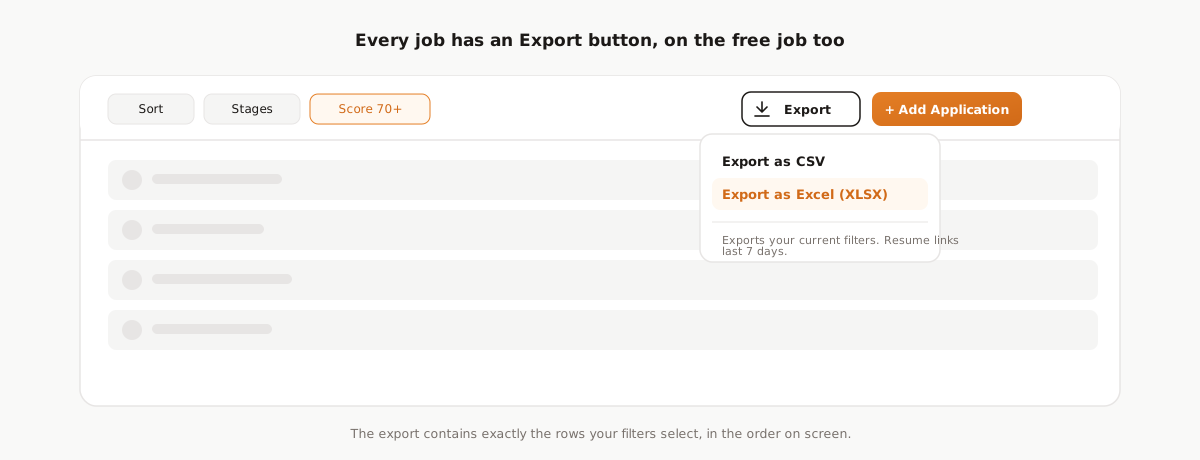
Export is free on every account, including the free first job, and you can re-export as often as you like. There is no row meter and no paywall between you and your own applicants.
What lands in the file
One row per applicant, with the columns you would have built by hand and a few you could not have:
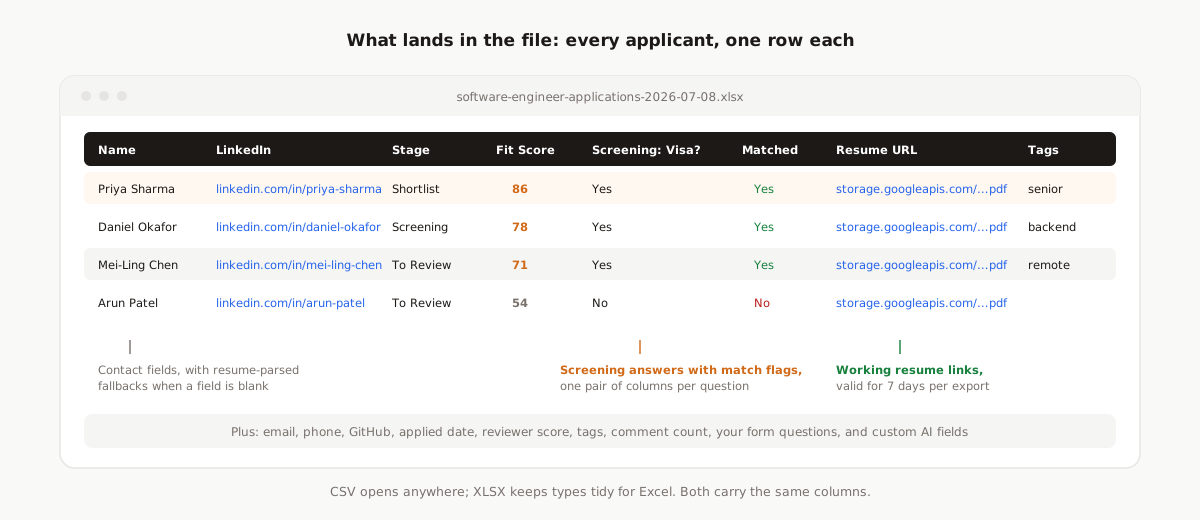
| Column group | What you get |
|---|---|
| Contact | Name, email, phone, LinkedIn profile URL, GitHub. Blank fields fall back to what the AI parsed out of the resume |
| Pipeline | Source, stage name, status, date applied, tags, comment count |
| Scores | AI fit score against your job description, plus your team's reviewer score and note |
| Resume | A working download link to the actual PDF each candidate uploaded |
| Screening | Every question as its own column pair: the candidate's answer, and whether it matched your ideal answer |
| Your fields | Any application form questions and custom AI-extracted fields, in order |
Resume links that actually work
Every row carries a direct download link to that candidate's resume PDF, the real file they uploaded, named after the candidate. Send the sheet to a cofounder and the links work for them too, no login needed. The links are valid for 7 days per export; when they lapse, re-export and the file comes back with fresh ones. That is deliberate: a spreadsheet that circulates forever should not carry live candidate files forever. The bulk resume guide goes deeper on why links beat a zip archive.
Export exactly the rows you filtered
The export honors whatever filters the list currently has. Filter to fit score 70 and above, or to candidates who matched all screening questions, or to a single stage, then hit Export: the file contains exactly those rows, in the order on screen. "Send me the shortlist as a spreadsheet" is a two-click operation, not an evening.
CSV or XLSX: which to pick
| CSV | XLSX | |
|---|---|---|
| Opens in | Everything, forever | Excel, Google Sheets, Numbers |
| Unicode names | Yes (the export includes the BOM Excel needs) | Yes |
| Best for | Importing into other tools, Google Sheets | Reading and formatting in Excel |
When in doubt: XLSX to read, CSV to import somewhere else. Both carry identical columns.
Getting it into Google Sheets
Thirty seconds: export CSV, then in a new Google Sheet, File > Import > Upload, keep "Detect automatically" for the separator, and import. Headers, screening columns, and resume links arrive intact. For the full Sheets workflow, including keeping a shared sheet current as new applicants arrive week over week, see the Google Sheets export guide.
The part the spreadsheet still cannot do
We will be straight about the trade, because we sell the other half of it. The exported file is a great artifact: it travels, it archives, it feeds whatever tool comes next. It is a poor workflow. In the sheet, nobody's notes sit next to the resume, the score column does not update when 40 new applicants land, and the second reviewer starts from zero.
In Reordinal, the same data is a ranked queue: sorted by fit score, filterable by screening answers, with your team's notes and ratings attached to each candidate. The spreadsheet is always one click away, so choosing the pipeline costs you nothing. Review in the tool, export whenever anyone asks for the file. Both, not either.
Frequently asked questions
Can you export LinkedIn job applicants to Excel for free?
Not from LinkedIn itself: no LinkedIn plan offers a real applicant export. The free path is to import applicants with the Reordinal Chrome extension and export from there. Your first Reordinal job is free with no credit card, and export to CSV or XLSX is free on every account.
Does LinkedIn have a built-in CSV export for applicants?
No. Free job posts have no export at all, and Recruiter tiers produce only a partial list export without resume files or screening answers. Getting a real spreadsheet requires a tool running in your own logged-in browser session.
Do the resume links in the export work for my teammates?
Yes. Each row carries a direct download link to the candidate's actual resume PDF that works for anyone you send the file to, no login required. Links stay valid for 7 days per export; re-exporting generates fresh ones.
Can I export only my shortlisted applicants?
Yes. The export honors the list's current filters: filter by stage, fit score range, or screening answers, then click Export, and the file contains exactly those rows in the order on screen.
Should I export CSV or XLSX?
XLSX if the destination is Excel and a human reader; CSV if the destination is another tool or Google Sheets. Both formats carry identical columns, and the CSV includes the byte-order mark Excel needs to display non-English names correctly.
Can I re-export after new applicants come in?
Yes, as often as you like, free. The exported-status badges in the Chrome extension mean week-two imports skip everyone you already have, and a fresh export includes the new arrivals with regenerated resume links.