
Three hundred applicants on your LinkedIn job means three hundred clicks to
open each candidate, three hundred more to download each resume, and a
downloads folder named resumes-final-v2 that nobody, including you, will
ever open twice. At roughly thirty seconds per download, the pile costs two
and a half hours of pure clicking before a single resume gets read.
This post is about getting every applicant's actual resume PDF out in bulk, and about being honest that most of the tools promising to do it are ones you should not run against a logged-in LinkedIn session.
Why resumes are the hard part of any LinkedIn export
Lists are easy. Plenty of tools will scrape names and profile URLs off your applicant page, and even LinkedIn Recruiter's own export manages a bare CSV. But a list without the files is a status report, not review material. The resume PDF is the one artifact everything downstream needs: it is what you read, what you forward to the hiring manager, what any scoring or parsing runs on. And it is exactly the thing LinkedIn keeps behind one click per candidate, at every tier.
The options you will find, honestly ranked
One-by-one downloads
The baseline. Compliant, free, and correct for five applicants. The math is the problem: thirty seconds each is 2.5 hours per 300 applicants, and that is just acquiring the files. Naming them, matching them to your notes, and keeping the folder in sync with week-two arrivals is its own quiet tax.
GitHub scripts and scraper tools
Search around and you will find auto-downloader scripts and browser automations that promise the whole folder in one run. Before running one, apply the test that actually matters: this code executes inside, or alongside, a browser session that is logged in as you on LinkedIn. Unvetted code with that access can read anything you can read and act as you. Some of these tools ask for your LinkedIn password outright, which is a hard no under any circumstances, for terms-of-service reasons and for the more basic reason that you are handing your account to a stranger. The safe pattern, which we lay out in the rules discussion here, is a tool that operates in your own session, on your own job's applicants, without ever touching your credentials. Most scripts fail that test on the last clause, and they break silently whenever LinkedIn changes its markup.
Print-to-PDF tricks
A popular workaround in other guides: open each applicant's profile and print the page to PDF. Setting aside that this is still one-by-one, notice what it produces: a screenshot of a LinkedIn profile. That is not the resume. The document the candidate actually wrote, formatted, and chose to upload is a different and better artifact, and it is the one a print-to-PDF workflow never touches.
Getting every resume PDF in one pass
The approach that survives the safety test and the volume test: import the applicants once with the Reordinal Chrome extension, which grabs each candidate's actual uploaded PDF as part of the import, then get the files however suits the moment. The full import walkthrough is here; it runs in batches of 25 and marks already-imported candidates on the LinkedIn page itself. Candidates who never uploaded a resume are skipped with a visible notice rather than imported as empty rows.
Once the applicants are in, you have two ways to hold the resumes:
Read them in Reordinal. Every resume is parsed into skills, experience, and education, scored against your job description, and attached to the candidate. For actual review this beats a folder of PDFs on every axis, because the reading order is the ranking, not the filename sort.
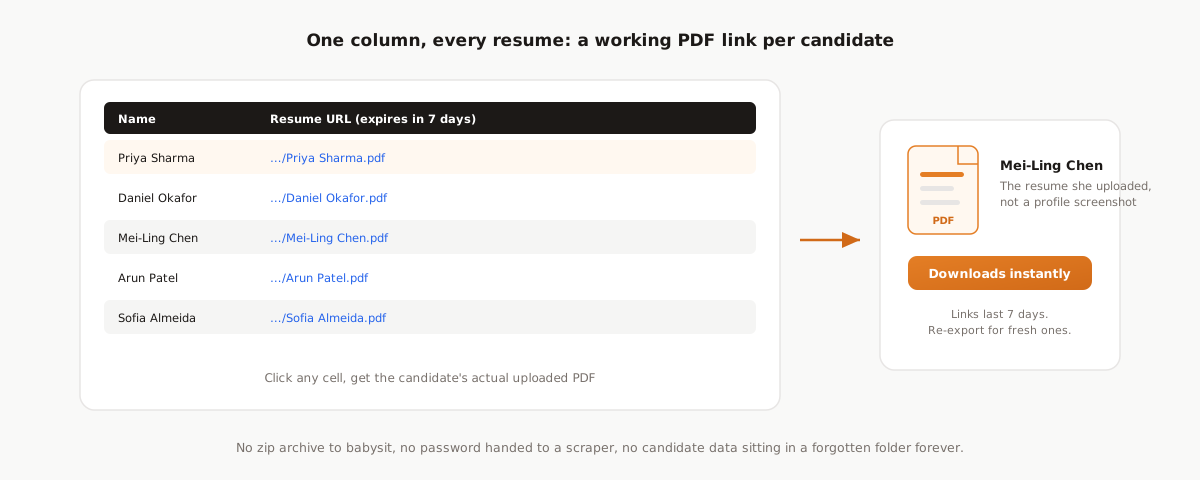
Export the job and take the links. Click Export on the job, pick CSV or Excel, and every row carries a direct download link to that candidate's PDF, named after the candidate. Anyone you send the sheet to can pull any resume with one click, no login. The links stay valid for 7 days, and re-exporting regenerates them.
Why 7-day links beat a zip of PDFs
A zip archive feels like the obvious deliverable, and we chose not to build one, on purpose. A zip of 300 resumes is a permanent, unaccountable copy of candidate data that ends up in someone's Drive, then someone's laptop backup, then nowhere anyone remembers. Expiring links give you the same practical ability, sharing any or all resumes with anyone this week, while the files themselves stay in one governed place. If you need the links again next month, the export is free and takes two clicks. Candidate data hygiene is going to matter more every year, and "we can produce every copy we ever made" is the position you want to be in.
Frequently asked questions
Can you download all applicant resumes from LinkedIn at once?
Not from LinkedIn natively, at any tier including Recruiter. The working approach is a Chrome extension that imports applicants from your own logged-in session with their actual resume PDFs, after which you can read them ranked or export a spreadsheet with a download link per candidate.
Is there a free LinkedIn resume downloader?
The Reordinal extension is free, and every job is free to post and tracks up to 100 applications, no credit card. That covers importing the applicants with their resume PDFs and exporting a spreadsheet with working resume links.
Are resume-downloader scripts against LinkedIn's rules?
The line that matters is credential sharing and automated access outside your own session. A tool that asks for your LinkedIn password, or logs in as you from elsewhere, is over the line. Reading your own applicants in your own browser session, faster, is the pattern that keeps you safe.
Why do the resume links expire after 7 days?
By design. Expiring links let you share resumes freely this week without creating permanent unaccountable copies of candidate data. Re-exporting is free and instant, and every export comes with fresh links.
What about candidates who did not upload a resume?
They are skipped at import with a visible notice, not silently dropped. LinkedIn allows Easy Apply without a resume in some flows, and a candidate with no PDF would be an empty row everywhere downstream.