
The Google Sheets version of this problem is its own problem. You do not want a file in your downloads folder; you want a live, shared sheet your cofounder can open from a link, filter to their half of the pile, and leave comments in. LinkedIn offers no route to that at all, and most of what ranks for this search wants to sell you an automation platform to build one.
Here is the boring, reliable, two-step version.
The automation-tool detour (and why it usually stalls)
Search "LinkedIn applicants to Google Sheets" and the results are recipes for automation tools: browser bots that scrape the visible page into rows, and email parsers that watch application-notification emails and append what they can extract. Both are clever, and both stall in the same places. Page scrapers capture what the list view shows, which means no resume files and no screening answers, and they re-capture everything on every run, leaving you to dedupe week two against week one by hand. Email parsers only see what the notification email contains, which is less than the list view. Both put a connector subscription and a maintenance burden between you and a spreadsheet.
The structural fix is the same one from the Excel guide: get the complete applications into a system once, then export from there, where the data is already structured and deduplicated.
The two-step path: CSV first, Sheets second
Step 1: Import your applicants. The Reordinal Chrome extension exports applicants from your own LinkedIn job with their resume PDFs and screening answers; the full walkthrough is here. Ten minutes the first time, and every job is free to post, no credit card.
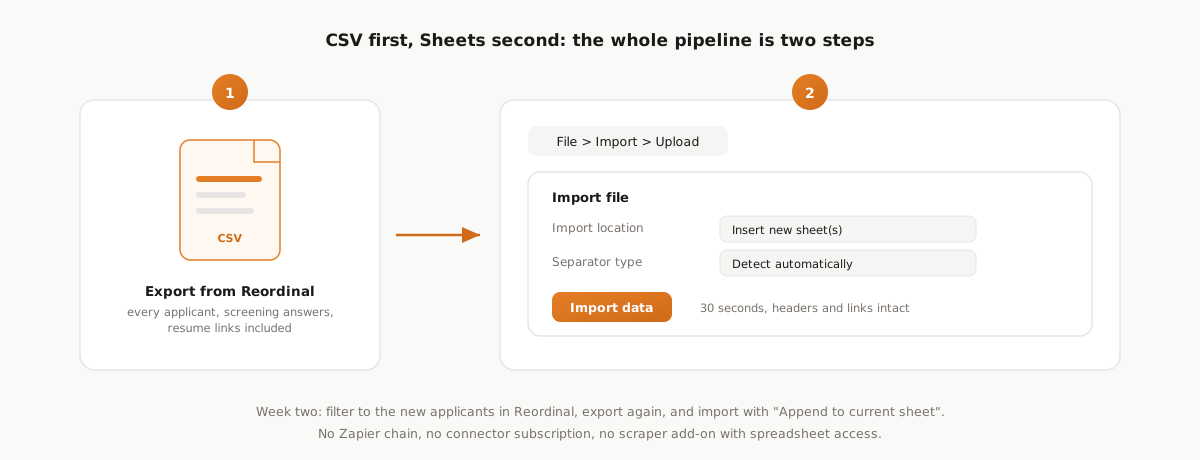
Step 2: Export CSV, import into Sheets. In the Reordinal job, click Export and pick CSV. Then in a new Google Sheet: File > Import > Upload, drop the CSV in, keep "Detect automatically" for the separator type, and import. Headers, screening columns, scores, and resume links land intact, including non-English names.
Keeping the sheet current
Week two brings new applicants. Import them with the extension (candidates you already took are marked on the LinkedIn page and stay skipped), then either re-export the whole job and re-import with "Replace current sheet", or filter the Reordinal list to the new arrivals by applied date, export just those rows, and import with "Append to current sheet". The export honors your filters, so both patterns are two clicks.
Resume links inside Sheets
Each row's resume link is clickable in Sheets and works for anyone with the sheet, no Reordinal login needed. Links last 7 days per export; when they lapse, a fresh export refreshes them. The reasoning behind expiring links over a zip archive is in the bulk resume download guide.
Formatting the sheet in five minutes
Three moves cover most of it: freeze the header row (View > Freeze > 1 row), add a filter view per reviewer (Data > Filter views) so two people can sort differently without fighting, and put conditional formatting on the fit score column (Format > Conditional formatting > Color scale) so the ranking reads at a glance.
Or skip the setup: our free applicant tracker template has the formatting, stage dropdowns, and match highlighting pre-built, and its columns line up with the export, so exported rows paste straight in. Upload the XLSX to Drive and use File > Save as Google Sheets.
When the sheet stops being enough
A shared sheet is a genuinely good review surface for one role and two reviewers. The failure mode is growth: notes drift into comment threads, someone sorts and breaks someone else's mental model, the score column goes stale as new applicants arrive, and version forks appear ("Final review sheet (2)"). When that starts, remember the sheet came from somewhere: the ranked, filterable pipeline that generated it is where scores update on arrival and notes stay attached to candidates. Review there, export whenever anyone asks for the sheet.
Frequently asked questions
Can you export LinkedIn applicants directly to Google Sheets?
Not directly from LinkedIn: no tier has any Sheets integration or real export. The reliable path is importing applicants with the Reordinal Chrome extension, exporting a CSV, and using File > Import in Google Sheets. About ten minutes end to end the first time.
Do I need Zapier or a connector tool?
No. The CSV export plus Sheets' native File > Import covers it, including week-over-week updates via the Append option. Automation platforms add a subscription and a maintenance burden to solve dedup problems the import flow already solves.
Do resume links work inside Google Sheets?
Yes. Each row carries a direct download link to the candidate's resume PDF that works for anyone with the sheet, no login required. Links are valid for 7 days per export, and re-exporting refreshes them.
How do I update the sheet when new applicants arrive?
Import the new applicants with the extension (already-imported candidates stay skipped automatically), filter the list to the new arrivals, export just those rows, and import into Sheets with Append to current sheet.